Showing posts with label Blogger Widgets. Show all posts
Your Blogger blog from, "Powered by Blogger" remove the Widget
August 22, 2017 |
2 Comments |
Your Blogger blog from "Powered by Blogger" to remove the Widget
Step-1
- Go to Blogger.com and login to your Blogger Profile
- Select your blog that you wish to remove this attribute
- Now go to template click edit HTML
Step-2
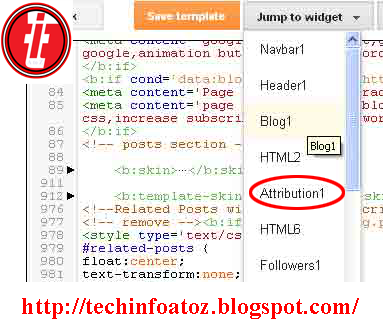
Here drop-down "jump to widget"option and from that list select Attribution1 as highlighted below
Step-3
Now in te editor press ctrl+F and find for this line <b:widget id='Attributon1' looked='true' title="type=Attribution'>
Step-4
Now replace the loced='true' in locked='false' as you see highlighted below
- Once done click save template
- Now go to layout option and at the blow you can see attibution click edit.
- In that popup window click remove and are done
Please visit blog now "powered by Blogger" There is no Widget
Thank you visiting my site.
Please comment if you get stuck.
A beautiful and fitting for your blog Social Sharing Widget
August 22, 2017 |
No Comments |
Widget view this:
Go to the Blogger Dashboard>>Templated>> Edit HTML
Ctrl+F to Search for </body> tag
Copy and paste the above.
<!--sharethis official floating social sharing widget....-->
<script type='text/javascript'>var switchT05x=true;</script>
<script src='http://w.sharethis.com/button/button.js' type='text/javascript'/>
<script src='http://s.sharethis.com/loader.js' type='text/javascript'/>
<script>
var options={ "publisher": "074821ed-063e-4ae5-bad9-3e26ecf249f3", "position": "left", "ad":{ "visible": true, "openDelay": 5, "closeDelay": 0}, "chicklets": { "items": ["facebook", "googleplus", "twitter", "linkedin", "email", "pinterest"]}};
var st_hover_widget = new sharethis.widgets.hoverbuttons(options);
</script>
Then choose your Template save
Stay well
Now finish your work.
Easily Add your blog Facebook Like Box
August 22, 2017 |
No Comments |
Add your blog Facebook Like box Easily.
Facebook Like box is very useful widget to show visitors the authority and love of the people for his blog site. Facebook offers a simple Like Box Plugin that you can easily integrate into your website and blog site But the default Facebook like Box is not having good look at ugly all.
Step-1.
Blogger Dashboard, Click the Layout
Step-2.
Click the Add a Gaddet
Now, HTML/javaScript, Click on
copy the code below and paste the content of the house
Copy the code below and paste the content of the house
<iframe src="//www.facebook.com/plugins/likebox.php?
href=http://www.facebook.com/yourpagelink&width=292&height=258&colorscheme=light&show_faces=true&border_color&stream=false&header=false&"style="border:none;overflow:hidden;
width:292px; height:258px;">
Note:- Replace href=http://www.facebook.com/yurpagelink
Step-5.
Now Click on save 'javaScript'you are done.
All right
Should look like tge following
Now finish your work.
Stay well.
how to add Google Maps to your blogspot and blog
August 22, 2017 |
No Comments |
The Use of Technology, and it is a unique technology to keep pace with the world
"how to add google maps Blogspot"
Step-1.
First, go to this link https://maps.google.com/, then the place where you want to display your blog's last search, see Figure:
Step-2.
Now you can get your location down bit more, click the setting button and the "share or embed map" Click on the image below to see.
Step-3.
There will be a page, see " Share link" and "Embed map" There are two option from among you" Embed map" and click after click box, the box rose to copy code requirements before you choose the right size. Then Copy the code. See figure below.
Step-4.
Login to your Blogger blog from the dashboard and Layout>>Add a gadget>>HTML/Javascript, Click and copy and paste above code that has been put into the house of the content Save now.
finish your work.
"how to add google maps Blogspot"
Step-1.
First, go to this link https://maps.google.com/, then the place where you want to display your blog's last search, see Figure:
Step-2.
Now you can get your location down bit more, click the setting button and the "share or embed map" Click on the image below to see.
Step-3.
There will be a page, see " Share link" and "Embed map" There are two option from among you" Embed map" and click after click box, the box rose to copy code requirements before you choose the right size. Then Copy the code. See figure below.
Step-4.
Login to your Blogger blog from the dashboard and Layout>>Add a gadget>>HTML/Javascript, Click and copy and paste above code that has been put into the house of the content Save now.
finish your work.